You may need to add documents to a lead - for example policy documents, signed paperwork etc.
To upload a document:
- Navigate to the customer's lead
- Click the New button on the Lead Summary Page
- Select Document from the drop down
- You will now see the Add Document Screen
- Click on the Choose File button
- Select the document you want to upload
- Enter a Description of the document
- Click Add to upload the document to the lead
- You can now see the document in the lead's activity stream


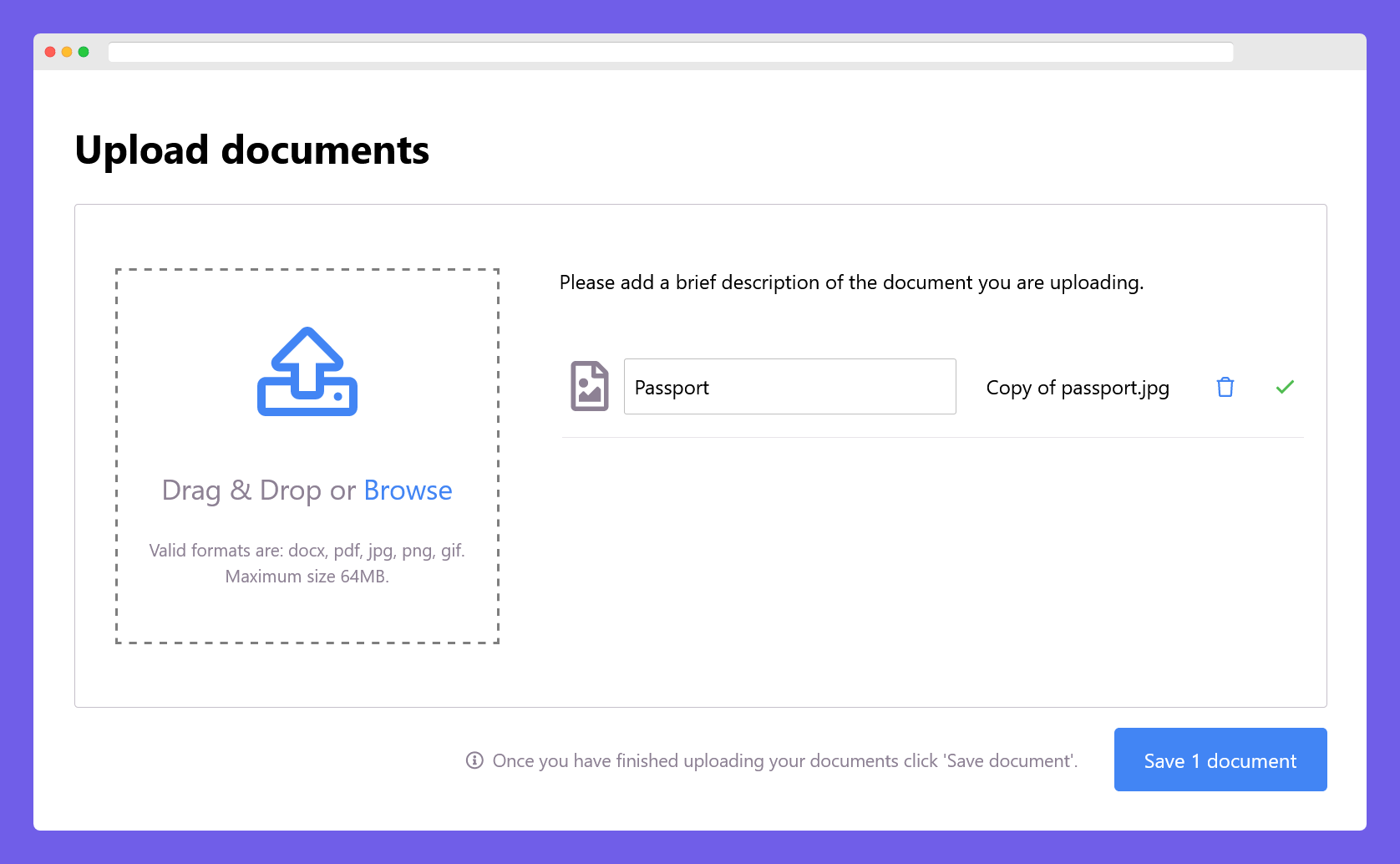
- You will now see the Add Document Screen
- Click on the Choose File button
- Select the document you want to upload
- Enter a Description of the document
- Click Add to upload the document to the lead
- You can now see the document in the lead's activity stream
To update a document description:
- Click the pencil icon on the activity, enter a new description for the document and click Update
Was this article helpful?
That’s Great!
Thank you for your feedback
Sorry! We couldn't be helpful
Thank you for your feedback
Feedback sent
We appreciate your effort and will try to fix the article