SMS Template Builder
Getting Started
- Navigate to Settings > Templates
- Select SMS as the template type
- Provide a Description or short name for your template
- Choose what Lead Group you want the template associated with
- Click Continue
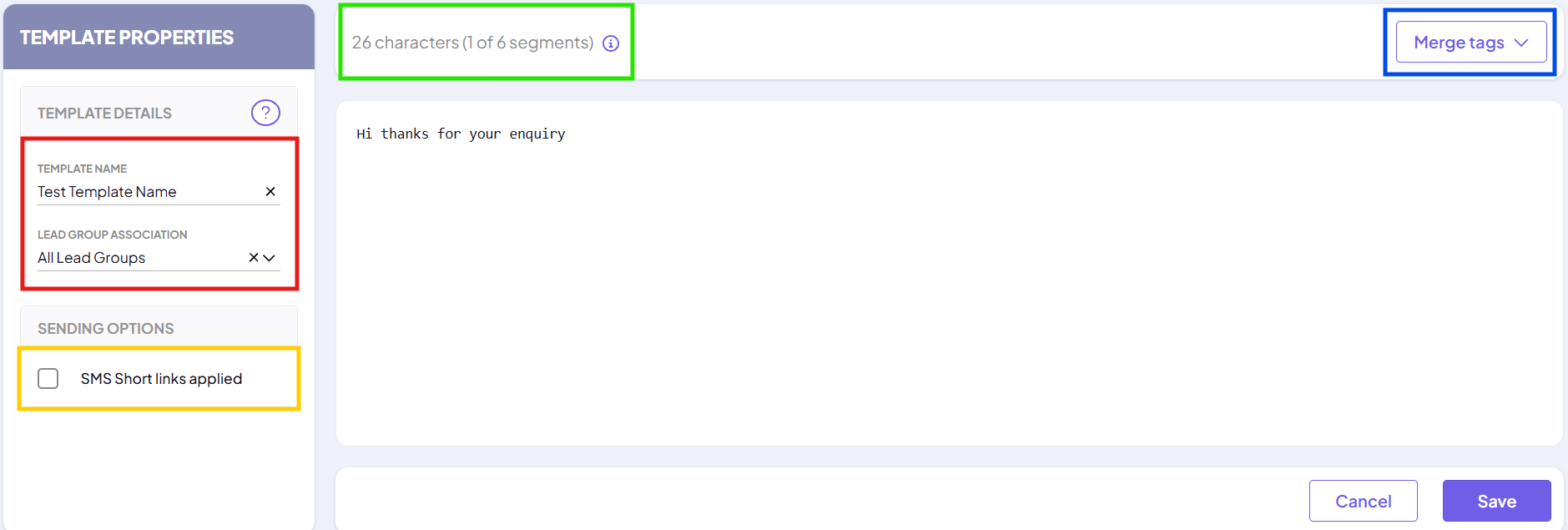
Template Details
- Template Name: Assign a unique name to identify your template.
- Lead Group Association: Link the template to a specific lead group for targeted communications.
SMS Options
Writing Your Message
Personalising your messages
- {LEAD_FIRST_NAME}: Inserts the lead's first name.
- {USER_NAME}: Inserts the name of the user assigned to the lead.
Unicode Characters Are Not Supported
FLG does not support Unicode characters in SMS messages. This includes emojis and other special symbols that fall outside the standard SMS character set.
When you create or edit a template, FLG validates the content and you will not be able to save it until any Unicode characters have been removed.
Unicode characters can still reach a message by other routes, and when they do, they are stripped out silently when the message is sent. FLG does not warn you, and your customer receives the message without them. This applies to every way of sending:
- One-to-one messages sent from a lead
- Bulk messages and campaigns
- Automated messages sent by lead actions and workflows
To avoid unexpected results, we recommend that you:
- Stick to plain text when writing SMS messages.
- Check that your message still makes sense without any emojis or symbols.
- Watch for characters that sneak in when you paste from Word or other documents, such as curly quotes.
Need Further Assistance?
- Visit our Help Centre for more articles and guides.
- Contact our support team via the Help option within the FLG platform.
Was this article helpful?
That’s Great!
Thank you for your feedback
Sorry! We couldn't be helpful
Thank you for your feedback
Feedback sent
We appreciate your effort and will try to fix the article