Sending a New Email
To send a new email from a lead:
- Navigate to the lead record.
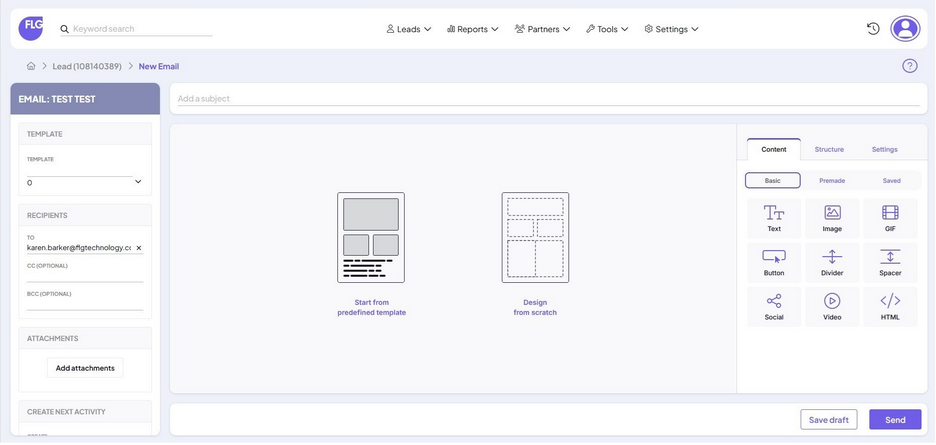
- Click New > Email.
- If a default template is set (see Setting a Default Template), it will automatically populate the subject and body.
- Complete the following fields:
- To – auto-filled if the lead has an email address
- Cc / Bcc – optional; accepts multiple comma-separated emails
- Subject – required unless loaded via a template
- To load a template manually, use the template dropdown.
- Selecting a template will replace any existing content in the subject and body.
- Use the editor to write or edit your message.
- Add attachments (see Adding Attachments).
- (Optional) Select a follow-up activity using Create next activity.
- Click Send or Save Draft to come back to it later.
- If any required fields are missing or invalid, a validation message will appear.
Replying to an Email
To reply to an email from a lead:
- Open the email from the lead activity stream.
- Click Reply or Save Reply All.
- The email editor will open with:
- Subject line prefixed with Re:
- The original message quoted
- To field filled based on your selection
- Make edits as needed.
- Add attachments or create a follow-up activity if required.
- Click Send or Save Draft.
Forwarding an Email
To forward an email from a lead:
- Open the email from the lead activity stream.
- Click Forward.
- The email editor will open with:
- Subject line prefixed with Fwd:
- Full original message quoted in the body
- Empty recipient fields (you must complete these)
- Add your message or make edits.
- Attach files or select a follow-up activity if required.
- Click Send or Save Draft.
Adding Attachments
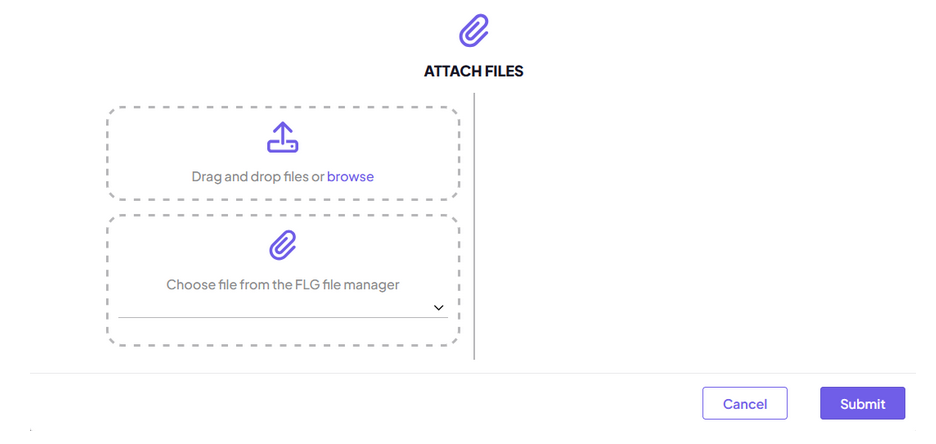
You can attach files in one of three ways:
- Click Add attachment to open the file manager modal
- Drag and drop files into the attachments section
- Browse and select files from your computer
Setting a Default Template
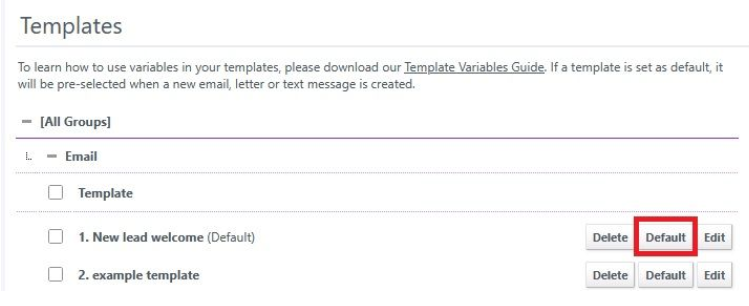
To set a default template for manual emails:
- Go to Settings > Templates
- Click Default next to the template you want to assign
- Once set, this template will load automatically when composing a new email from a lead
Using the Email Editor
The editor allows you to build branded, formatted emails with merge tags and reusable content blocks.
Key features include:
- Formatting toolbar – text styling, links, alignment, colours
- Drag-and-drop blocks – add images, dividers, and content
- HTML view – click the </> icon to edit raw code
- Reusable blocks – highlight and save content for future use
Need Further Assistance?
If you have any questions or require additional support:
- Visit our Help Centre for more articles and guides.
- Contact our support team via the Help option within the FLG platform.
Was this article helpful?
That’s Great!
Thank you for your feedback
Sorry! We couldn't be helpful
Thank you for your feedback
Feedback sent
We appreciate your effort and will try to fix the article