Email Template Builder
The Email Template Builder in FLG empowers you to create professional, branded emails that can be sent manually, via workflows, or in bulk. With a user-friendly drag-and-drop interface, you can design emails that resonate with your audience and maintain consistency across your communications.
Getting Started
To access the Email Template Builder:
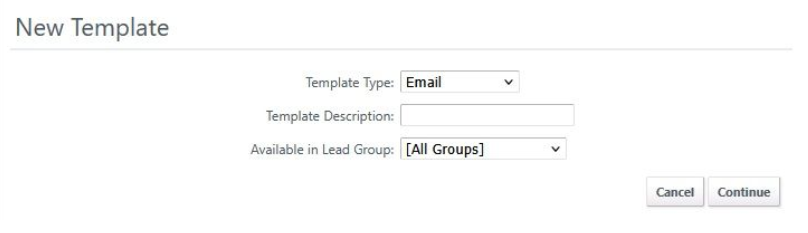
- Navigate to Settings > Templates
- Click Add New Template
- Select Email as the template type
- Provide a Description or short name for your template
- Choose what Lead Group you want the template associated with
- Click Continue
Template Details
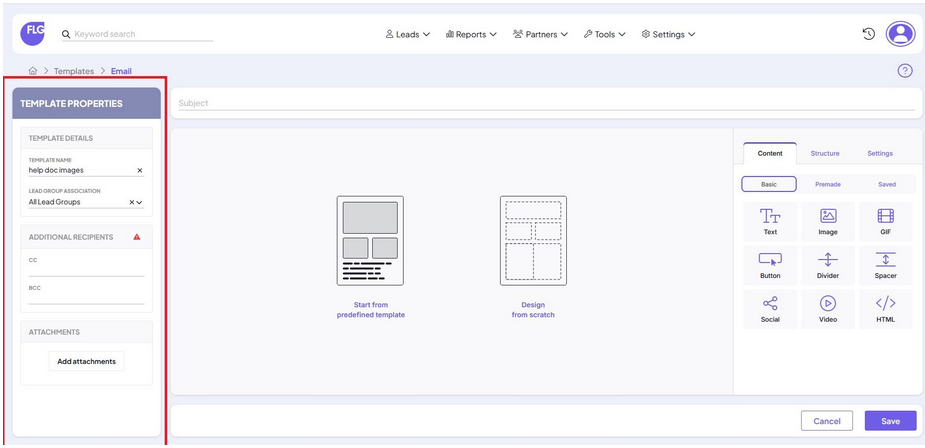
Before designing your email, configure the following settings:
- Template Name: Assign a unique name to identify your template
- Lead Group Association: Link the template to a specific lead group for targeted communications.
- Subject Line: Define the subject that will appear in recipients' inboxes.
- Cc / Bcc: Add email addresses for carbon copy or blind carbon copy recipients.
- Note Enter a { to see a list of available template variables to use in the CC or BCC fields
- Attachments: Include files to be sent alongside your email.
Designing Your Email
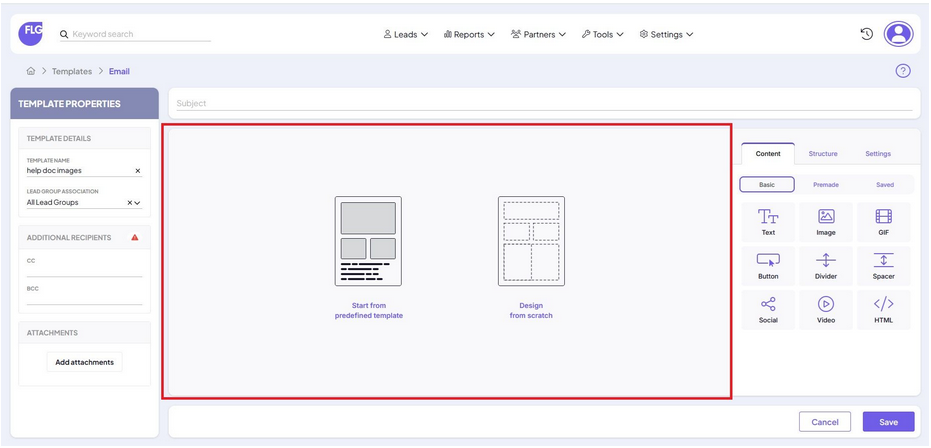
FLG offers two options to begin designing your email:
- Start from a Predefined Template: Choose from a selection of professionally designed templates.
- Design from Scratch: Build your email layout using customisable content blocks.
Using the Drag-and-Drop Editor
The Drag-and-Drop Editor is divided into three main sections:
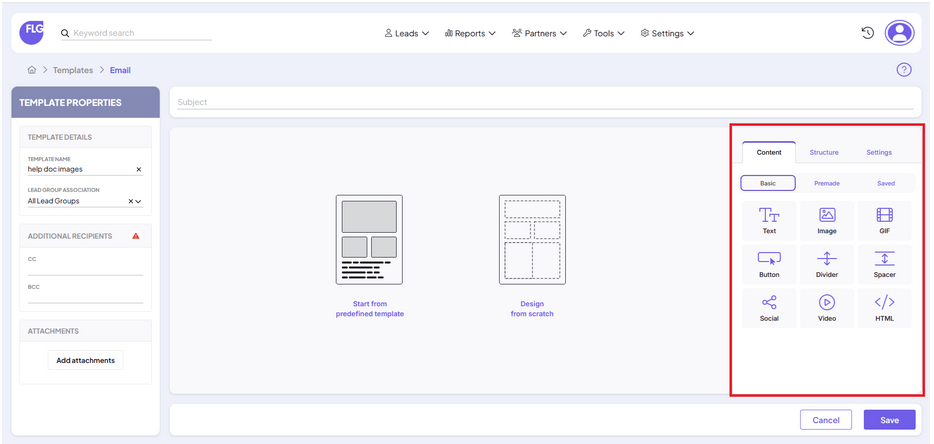
1. Content Panel (right side bar)
Drag elements from this panel into your email layout:
- Text: Add and format your message content.
- Image: Insert images to enhance visual appeal.
- Button: Create call-to-action buttons.
- Divider: Separate sections with horizontal lines.
- Spacer: Add space between elements for better layout.
- Social: Include social media icons linking to your profiles.
- Video: Embed videos to engage recipients.
- HTML: Insert custom HTML code for advanced customisation.
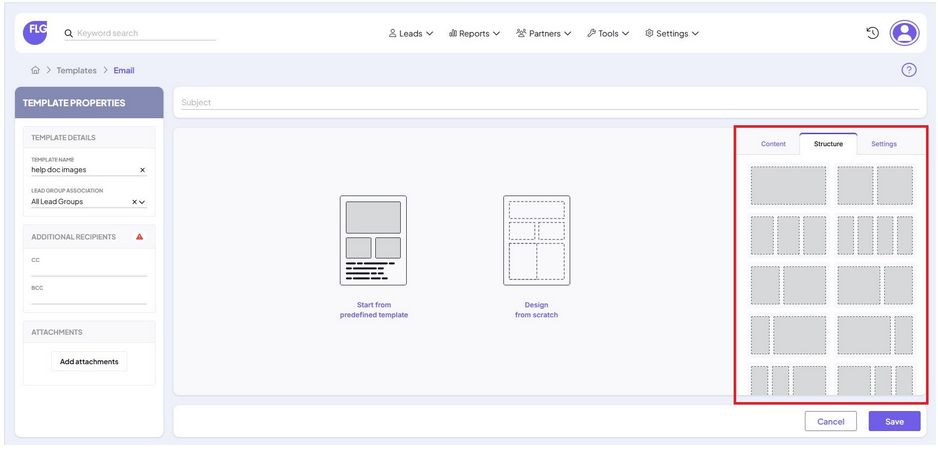
2. Structure Panel
Define the layout of your email by adding rows and columns to organise content effectively.
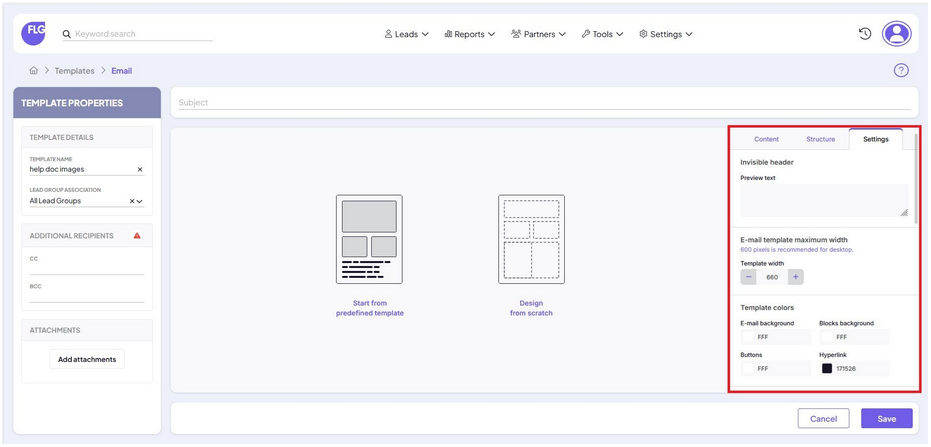
3. Settings Panel
Adjust global settings for your email, including:
- Background Colour: Set the overall background colour.
- Padding: Control spacing within elements.
- Font: Choose fonts to match your branding.
Personalising your emails
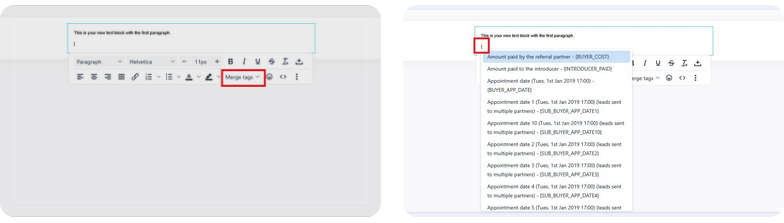
Utilise Merge Tags to personalise your emails. For example:
- {LEAD_FIRST_NAME}: Inserts the lead's first name.
- {USER_NAME}: Inserts the name of the user assigned to the lead.
Saved Blocks
Saved blocks are ideal for keeping emails consistent and reducing build time especially for elements you use often.
Saving a Block
If you’ve created a content block that you want to reuse in other email templates, like a header, footer, or call-to-action, you can save it as a block.
To save a block:
To save a block:
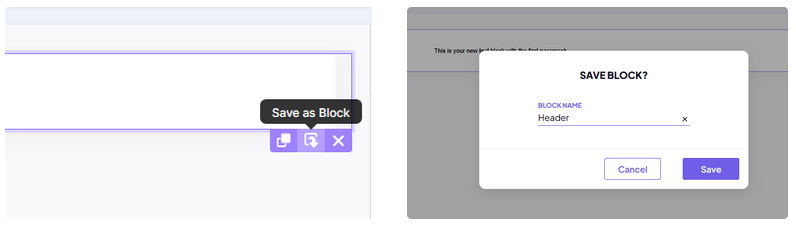
- Hover over the block you want to reuse.
- Click the Save as Block icon in the block toolbar.
- Enter a name for your block (e.g. “Header”).
- Click Save.
Tip: Saved blocks are global - once created, they’re available to all users in your account.
Using a Saved Block
To reuse a previously saved block in your email template:
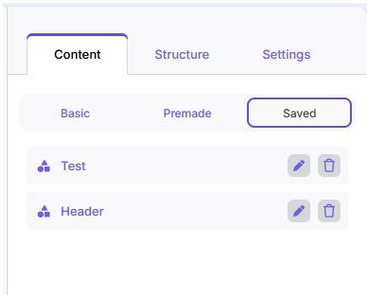
- Open the Content panel on the right.
- Select the Saved tab.
- Drag your chosen block into the layout.
- You can rename or delete saved blocks using the pencil or bin icons next to each one.
Need Further Assistance?
If you have any questions or require additional support:
- Visit our Help Centre for more articles and guides.
- Contact our support team via the Help option within the FLG platform.
Was this article helpful?
That’s Great!
Thank you for your feedback
Sorry! We couldn't be helpful
Thank you for your feedback
Feedback sent
We appreciate your effort and will try to fix the article