Sending SMS from a Lead
This guide explains how to send a text message from within a lead record in FLG, and how to use the SMS editor.
Sending a New SMS
To send a new SMS from a lead:
- Navigate to the lead record.
- Click New > SMS.
- If a default template is set (see Setting a Default Template), it will automatically populate the message.
- Confirm the To field, this is auto-filled if the lead has a mobile number.
- Selecting a template will replace any existing content in the message field.
- Use the editor to write or edit your message.
- Click Send or Save Draft to come back to it later.
- If any required fields are missing or invalid, a validation message will appear.
Setting a Default Template
To set a default template for manual SMS:
- Go to Settings > Templates.
- Click Default next to the template you want to assign.
- Once set, this template will load automatically when composing a new SMS from a lead.
Using the SMS Editor
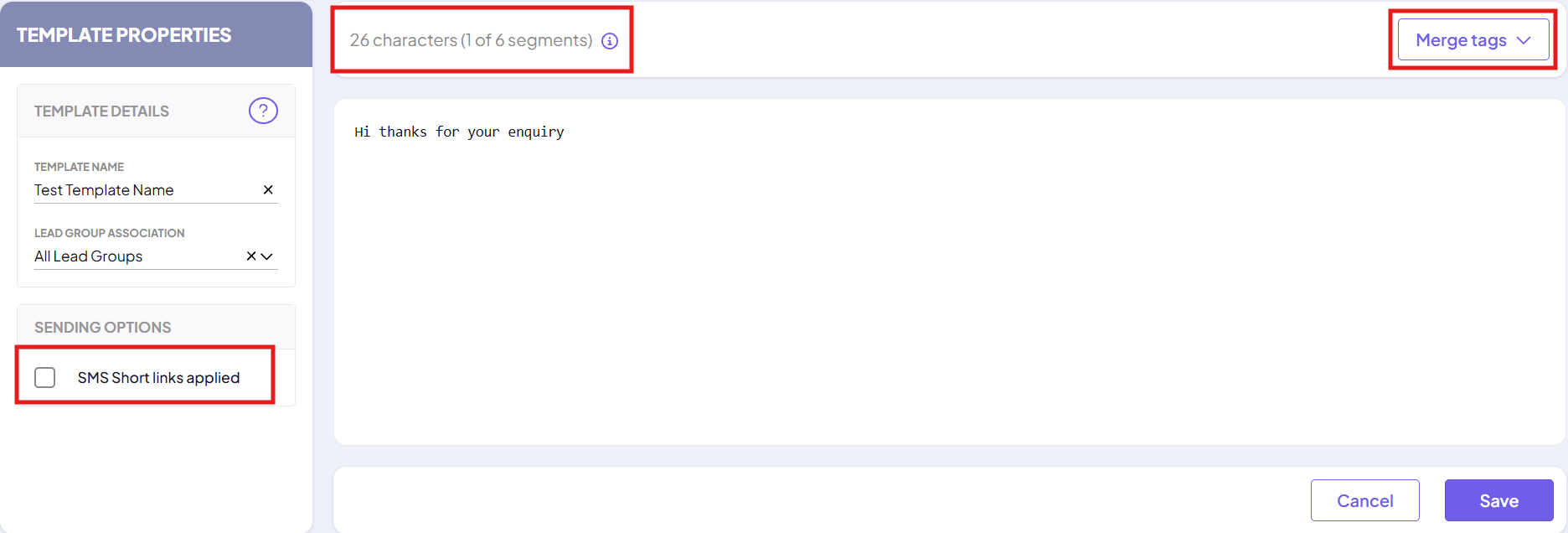
The editor is a plain text field with merge tags and a live segment counter, there’s no formatting or layout options to configure.
Key features include:
Key features include:
- Character and segment count – shown above the message box as X characters (Y of Z segments), updates live as you type.
- Merge tags – personalise your message using lead and user data.
- Short links applied – automatically shortens links in your message, which can reduce your segment count.
Please note: FLG does not support Unicode characters, such as emojis, in SMS messages. If any are included, they are stripped silently when the message is sent, so your customer will receive the message without them. For more detail, see Unicode Characters Are Not Supported in the SMS template builder article.
Need Further Assistance?
If you have any questions or require additional support:
- Visit our Help Centre for more articles and guides.
- Contact our support team via the Help option within the FLG platform.
Was this article helpful?
That’s Great!
Thank you for your feedback
Sorry! We couldn't be helpful
Thank you for your feedback
Feedback sent
We appreciate your effort and will try to fix the article